Loading FLUXCADE...
Pixel Art Forge
Loading Pixel Art Forge...
Pixel Art Forge
DESIGNStudio
A multi-layer, multi-frame pixel art editor and animator with palette management, onion-skinning, and sprite-sheet export.
UpdatedJun 2026
ExportsPNG, JPG
Runs onAny browser
PriceFree
Overview
A dynamic design playground.
Pixel Art Forge is a full pixel-art studio in the browser. Draw on a configurable grid, organize your work into layers and frames, manage a custom palette, and animate the result with onion-skinning and a frame timeline.
The Drawing tab exposes brush, eraser, fill, line, rectangle, circle, and selection. The Color tab manages palettes and lets you import an image and convert it into a pixel grid. The Layers tab is a traditional layer stack; Export packs it all into a sprite sheet.
Features
Built for design-scale experimentation.
01 / Spotlight
Multi-layer
Multi-frame editor with brush, eraser, fill, line, rectangle, circle, and select.
02
Palette manager with
Custom palettes; image-to-pixel import with color reduction.
03
Onion-skinning
Frame timeline, and a sprite-sheet PNG exporter.
How to use
Workflow
Steps take about a minute.
Open the Drawing tab to pick a tool, then paint on the canvas. Use the Color tab to manage your palette or import an image to pixelate. Add layers in the Layers tab, frames in the timeline, and export the final sprite sheet from the Export tab or the toolbar.
Use cases
What people use it for
Creating pixel art for game assets, sprites, and iconsBuilding sprite-sheet animations with onion-skinningImporting and converting images into pixel gridsDesigning retro-style graphics with a full layer and frame workflow
FAQ
Common questions
How big can the canvas be?+
The canvas size is configurable per project. Common sizes are 16x16, 32x32, and 64x64; you can set custom dimensions in the Drawing tab. Larger canvases are slower to redraw but supported.
Can I save my work?+
Yes. Use the toolbar Export → JSON to save the full project (layers, frames, palette). Drag the file back in via Import JSON to round-trip your work between sessions.
Related
More design apps
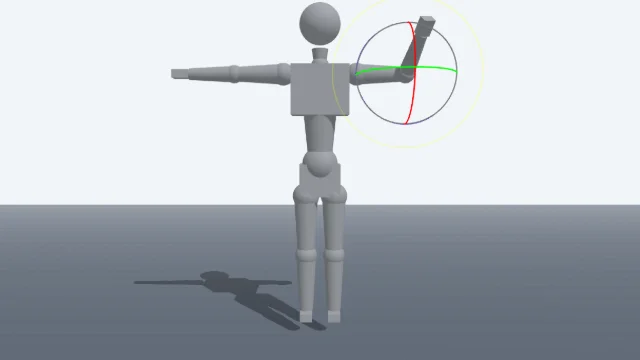
Scene Poser
Pose 3D characters and build scenes for film and animation references.
Watercolor Painter
Interactive watercolor painting with realistic fluid dynamics and paper effects.
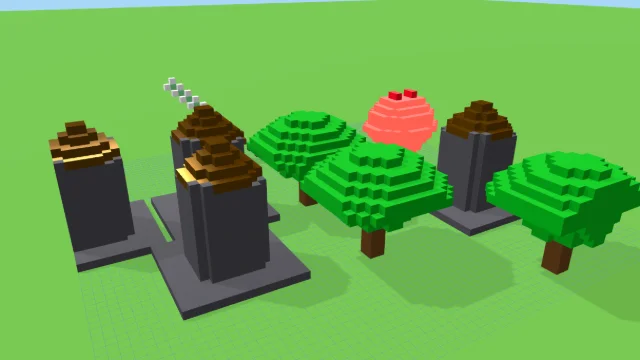
Voxel Art Studio
Browser-based volumetric 3D studio. Build, paint, and extrude voxels using symmetry tools and custom physical material properties (metal, glass, neon). Features an Asset Creator workspace, environment controls, and exports to OBJ, VOX, and PNG.
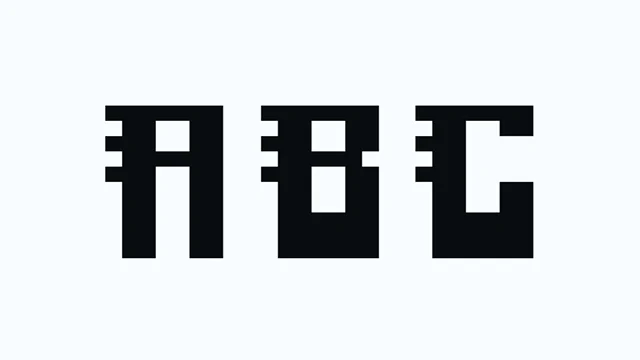
Pixel Font Studio
Design pixel & block display fonts with a real-time editor, live preview, sprite sheet, SVG, and TTF export.
Pixel Art Forge
DESIGNStudio
A multi-layer, multi-frame pixel art editor and animator with palette management, onion-skinning, and sprite-sheet export.
UpdatedJun 2026
ExportsPNG, JPG
Runs onAny browser
PriceFree
Overview
A dynamic design playground.
Pixel Art Forge is a full pixel-art studio in the browser. Draw on a configurable grid, organize your work into layers and frames, manage a custom palette, and animate the result with onion-skinning and a frame timeline.
The Drawing tab exposes brush, eraser, fill, line, rectangle, circle, and selection. The Color tab manages palettes and lets you import an image and convert it into a pixel grid. The Layers tab is a traditional layer stack; Export packs it all into a sprite sheet.
Features
Built for design-scale experimentation.
01 / Spotlight
Multi-layer
Multi-frame editor with brush, eraser, fill, line, rectangle, circle, and select.
02
Palette manager with
Custom palettes; image-to-pixel import with color reduction.
03
Onion-skinning
Frame timeline, and a sprite-sheet PNG exporter.
How to use
Workflow
Steps take about a minute.
Open the Drawing tab to pick a tool, then paint on the canvas. Use the Color tab to manage your palette or import an image to pixelate. Add layers in the Layers tab, frames in the timeline, and export the final sprite sheet from the Export tab or the toolbar.
Use cases
What people use it for
Creating pixel art for game assets, sprites, and iconsBuilding sprite-sheet animations with onion-skinningImporting and converting images into pixel gridsDesigning retro-style graphics with a full layer and frame workflow
FAQ
Common questions
How big can the canvas be?+
The canvas size is configurable per project. Common sizes are 16x16, 32x32, and 64x64; you can set custom dimensions in the Drawing tab. Larger canvases are slower to redraw but supported.
Can I save my work?+
Yes. Use the toolbar Export → JSON to save the full project (layers, frames, palette). Drag the file back in via Import JSON to round-trip your work between sessions.
Related
More design apps
Scene Poser
Pose 3D characters and build scenes for film and animation references.
Watercolor Painter
Interactive watercolor painting with realistic fluid dynamics and paper effects.
Voxel Art Studio
Browser-based volumetric 3D studio. Build, paint, and extrude voxels using symmetry tools and custom physical material properties (metal, glass, neon). Features an Asset Creator workspace, environment controls, and exports to OBJ, VOX, and PNG.
Pixel Font Studio
Design pixel & block display fonts with a real-time editor, live preview, sprite sheet, SVG, and TTF export.