Loading FLUXCADE...
Model Voxelizer
Loading Model Voxelizer...
Model Voxelizer
DESIGNStudio
A browser-based 3D model voxelizer that converts your models into block art.
UpdatedJun 2026
ExportsPNG, OBJ, VOX, GLB
Runs onAny browser
PriceFree
Overview
A dynamic design playground.
Model Voxelizer converts 3D GLTF and GLB models into volumetric voxel structures entirely within your browser. It analyzes your model from all directions to construct a gapless, solid voxel shell.
The tool maps colors directly from your model's textures for accurate results. To create clean, unified retro designs, you can enable Advanced Color Merging to group similar shades into a dominant color palette. Choose from classic cubes, lego bricks, or connected architectural column designs, and export your final voxel art to PNG snapshots, standard OBJ meshes with vertex colors, MagicaVoxel VOX structures, or fully textured GLB 3D files.
Features
Built for design-scale experimentation.
01 / Spotlight
Instant
Browser-based voxelization without uploading to any server.
02
Multi-directional analysis ensures
Gapless, solid voxel shell generation.
03
Accurate color extraction
Directly from complex model textures.
04
Advanced Color Clustering
groups model colors into a clean palette with adjustable strictness.
05
Multiple voxel shapes
instantly swap between standard cubes, detailed lego studs, and connected columns.
How to use
Workflow
Steps take about a minute.
1. Upload: Go to the Model tab and click the upload area to load a GLB or GLTF model. 2. Grid: Use the Voxel Grid Resolution slider to adjust block sizes (HD detail vs blocky retro). Choose a voxel shape style (Cube, Lego, Column). 3. Color: Tweak colors in the Colors tab. Turn on 'Advanced Color Merging' to identify dominant colors, and adjust strictness sliders to group similar shades. 4. View: Toggle 'Show Original Overlay' to compare the voxelized mesh with the original GLTF design. 5. Export: Click the Export button in the top right toolbar to save your work as a PNG snapshot, OBJ mesh, MagicaVoxel VOX file, or GLB asset.
Use cases
What people use it for
Converting complex 3D meshes into block-based voxel game assetsGenerating stylized lego or pillar art from architectural 3D modelsExtracting clean, simplified retro color palettes from organic texturesExploring how 3D models translate into block-based representations
FAQ
Common questions
Why does high resolution take longer to compute?+
Voxelizing a model requires analyzing it from many directions. High resolutions (smaller voxel sizes) require exponentially more analysis, but the tool processes these in chunks to keep your browser responsive.
What files can I upload?+
You can upload standard binary GLB or JSON GLTF files. Make sure the file contains valid mesh geometries and embedded textures or colors.
What export formats are supported?+
Model Voxelizer supports exporting to high-res PNG snapshots, standard Wavefront OBJ files (with vertex colors, separate blocks), MagicaVoxel VOX files (compatible with standard voxel editors), and GLB 3D models (fully compatible with Blender, Unity, and Unreal Engine).
Related
More design apps
Scene Poser
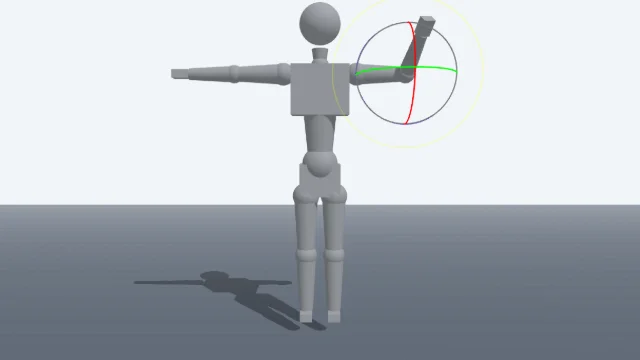
Pose 3D characters and build scenes for film and animation references.

Watercolor Painter
Interactive watercolor painting with realistic fluid dynamics and paper effects.
Voxel Art Studio
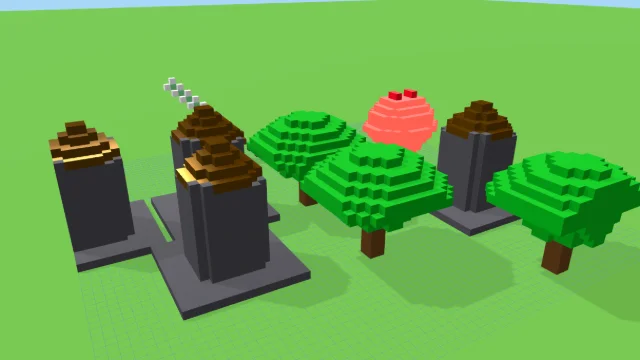
Browser-based volumetric 3D studio. Build, paint, and extrude voxels using symmetry tools and custom physical material properties (metal, glass, neon). Features an Asset Creator workspace, environment controls, and exports to OBJ, VOX, and PNG.
Pixel Art Forge
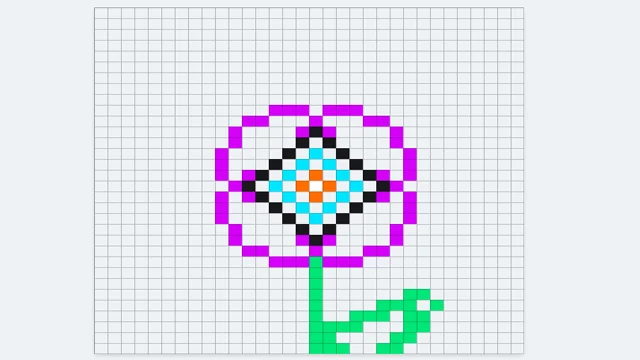
Multi-layer, multi-frame pixel art editor and animator with palette management, onion-skinning, sprite-sheet export, and image-to-pixel import.
Model Voxelizer
DESIGNStudio
A browser-based 3D model voxelizer that converts your models into block art.
UpdatedJun 2026
ExportsPNG, OBJ, VOX, GLB
Runs onAny browser
PriceFree
Overview
A dynamic design playground.
Model Voxelizer converts 3D GLTF and GLB models into volumetric voxel structures entirely within your browser. It analyzes your model from all directions to construct a gapless, solid voxel shell.
The tool maps colors directly from your model's textures for accurate results. To create clean, unified retro designs, you can enable Advanced Color Merging to group similar shades into a dominant color palette. Choose from classic cubes, lego bricks, or connected architectural column designs, and export your final voxel art to PNG snapshots, standard OBJ meshes with vertex colors, MagicaVoxel VOX structures, or fully textured GLB 3D files.
Features
Built for design-scale experimentation.
01 / Spotlight
Instant
Browser-based voxelization without uploading to any server.
02
Multi-directional analysis ensures
Gapless, solid voxel shell generation.
03
Accurate color extraction
Directly from complex model textures.
04
Advanced Color Clustering
groups model colors into a clean palette with adjustable strictness.
05
Multiple voxel shapes
instantly swap between standard cubes, detailed lego studs, and connected columns.
How to use
Workflow
Steps take about a minute.
1. Upload: Go to the Model tab and click the upload area to load a GLB or GLTF model. 2. Grid: Use the Voxel Grid Resolution slider to adjust block sizes (HD detail vs blocky retro). Choose a voxel shape style (Cube, Lego, Column). 3. Color: Tweak colors in the Colors tab. Turn on 'Advanced Color Merging' to identify dominant colors, and adjust strictness sliders to group similar shades. 4. View: Toggle 'Show Original Overlay' to compare the voxelized mesh with the original GLTF design. 5. Export: Click the Export button in the top right toolbar to save your work as a PNG snapshot, OBJ mesh, MagicaVoxel VOX file, or GLB asset.
Use cases
What people use it for
Converting complex 3D meshes into block-based voxel game assetsGenerating stylized lego or pillar art from architectural 3D modelsExtracting clean, simplified retro color palettes from organic texturesExploring how 3D models translate into block-based representations
FAQ
Common questions
Why does high resolution take longer to compute?+
Voxelizing a model requires analyzing it from many directions. High resolutions (smaller voxel sizes) require exponentially more analysis, but the tool processes these in chunks to keep your browser responsive.
What files can I upload?+
You can upload standard binary GLB or JSON GLTF files. Make sure the file contains valid mesh geometries and embedded textures or colors.
What export formats are supported?+
Model Voxelizer supports exporting to high-res PNG snapshots, standard Wavefront OBJ files (with vertex colors, separate blocks), MagicaVoxel VOX files (compatible with standard voxel editors), and GLB 3D models (fully compatible with Blender, Unity, and Unreal Engine).
Related
More design apps
Scene Poser
Pose 3D characters and build scenes for film and animation references.
Watercolor Painter
Interactive watercolor painting with realistic fluid dynamics and paper effects.
Voxel Art Studio
Browser-based volumetric 3D studio. Build, paint, and extrude voxels using symmetry tools and custom physical material properties (metal, glass, neon). Features an Asset Creator workspace, environment controls, and exports to OBJ, VOX, and PNG.
Pixel Art Forge
Multi-layer, multi-frame pixel art editor and animator with palette management, onion-skinning, sprite-sheet export, and image-to-pixel import.